<AuthView /> component
| iOS | Android |
|---|---|
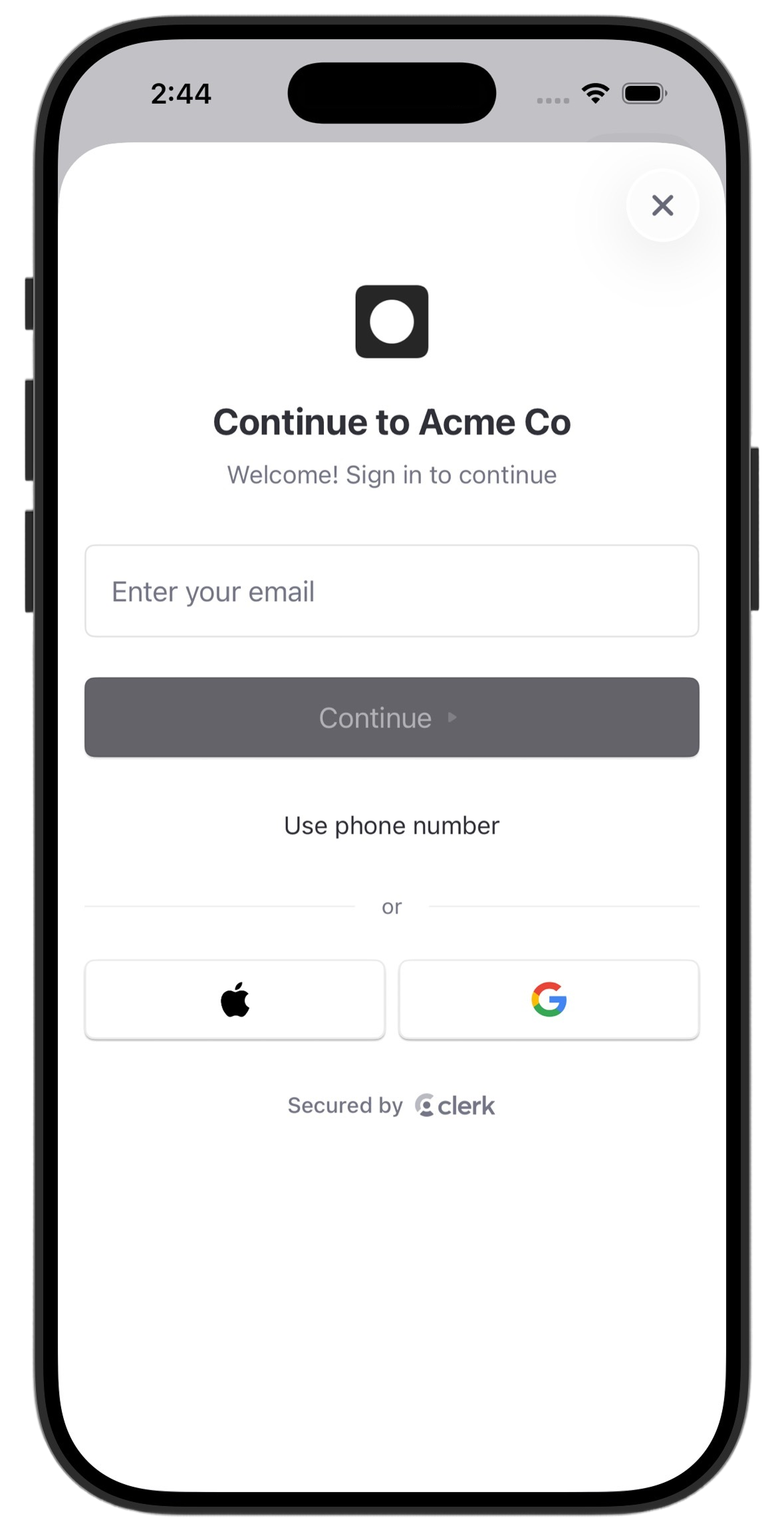 | 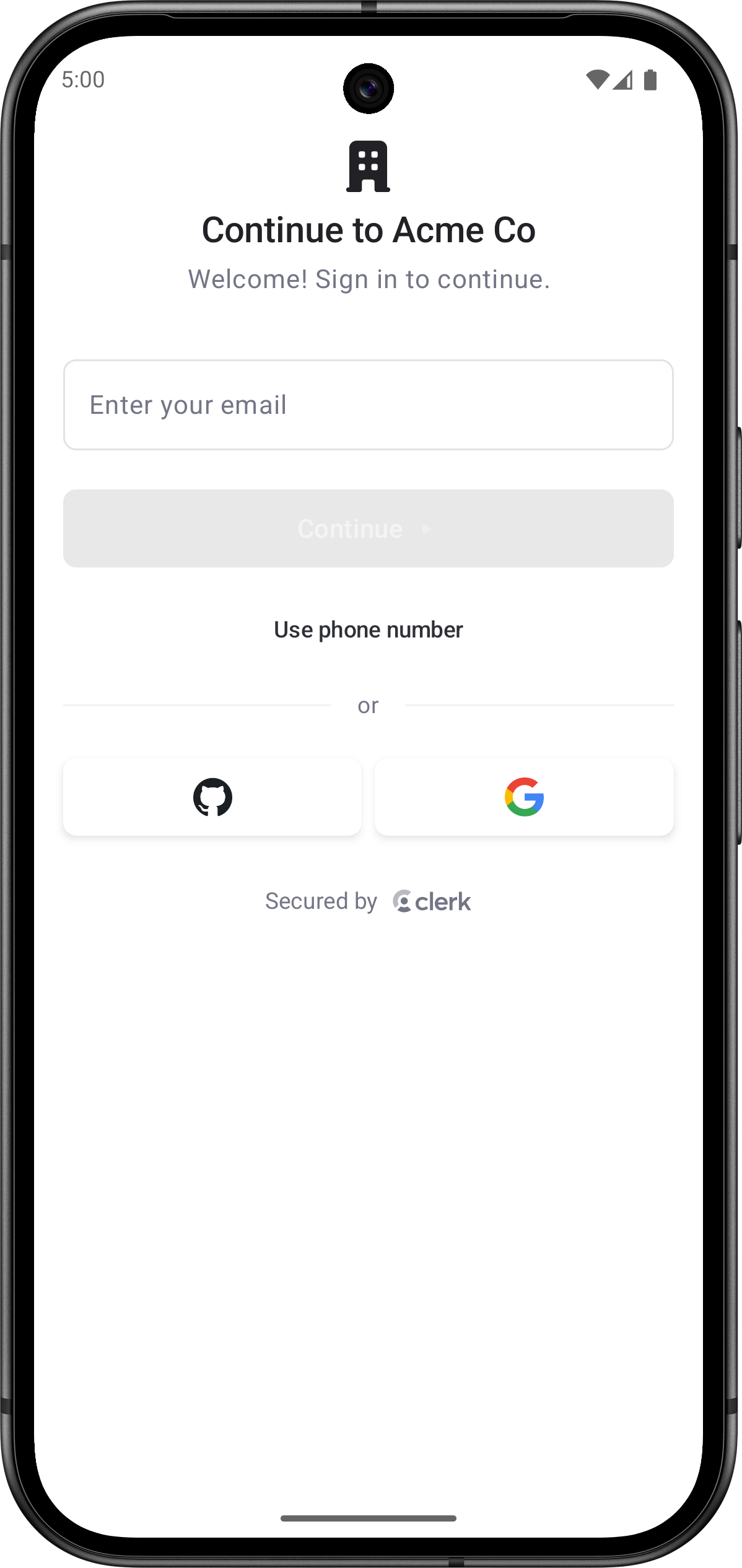 |
The <AuthView /> component renders a complete native authentication interface using SwiftUI on iOS and Jetpack Compose on Android. It handles authentication flows including email, phone, OAuth, passkeys, biometric sign-in, and multi-factor authentication. All methods enabled in your Clerk Dashboard are automatically supported.
The <AuthView /> renders inline in your React Native view hierarchy, so you can place it in a modal, route, full-screen view, or any other layout that fits your app.
Usage
The following examples show how to use the <AuthView /> in your Expo app. You can use useAuth() or useUser() to read authentication state and update your UI after auth changes.
Render in a modal
The following example demonstrates one way to render <AuthView /> inside a React Native <Modal>. The native dismiss button is shown by default. Use onDismiss to close the modal in React Native state.
import { AuthView } from '@clerk/expo/native-components'
import { useAuth, useUser } from '@clerk/expo'
import { useState } from 'react'
import { Button, Modal, StyleSheet, Text, View } from 'react-native'

export default function AuthButton() {
  const { isSignedIn } = useAuth({ treatPendingAsSignedOut: false })
  const { user } = useUser()
  const [isAuthOpen, setIsAuthOpen] = useState(false)

  return (
    <View style={styles.container}>
      {isSignedIn ? (
        <Text>User ID: {user?.id}</Text>
      ) : (
        <Button title="Sign in" onPress={() => setIsAuthOpen(true)} />
      )}
      <Modal
        animationType="slide"
        visible={isAuthOpen}
        presentationStyle="pageSheet"
        onRequestClose={() => setIsAuthOpen(false)}
      >
        <AuthView onDismiss={() => setIsAuthOpen(false)} />
      </Modal>
    </View>
  )
}

const styles = StyleSheet.create({
  container: {
    flex: 1,
    justifyContent: 'center',
    alignItems: 'center',
  },
})<AuthView mode="signIn" /><AuthView mode="signUp" />Render as a required full-screen view
You can render <AuthView /> directly in a full-screen view when users must authenticate before continuing. In this case, pass isDismissible={false} so the native dismiss button isn't shown.
import { AuthView } from '@clerk/expo/native-components'
import { useSession } from '@clerk/expo'
import { useRouter } from 'expo-router'
import { useEffect } from 'react'

export default function SignInScreen() {
  const { session } = useSession()
  const router = useRouter()

  useEffect(() => {
    if (session?.status === 'active') {
      router.replace('/(home)')
    }
  }, [session?.status, router])

  return <AuthView isDismissible={false} />
}
Render in a navigation stack
To push <AuthView /> onto your app's navigation stack, hide the route's header and pass onHostBack. The component keeps its native header, so its screen titles, back buttons, swipe-back gestures, and transitions remain native.
Passing onHostBack shows a back button on the component's first screen, where it has no screen of its own to return to. The callback runs when the button is tapped. Pop your route in response.
The component never leaves the route on its own, so react to the auth state to know when the flow is finished. The following example pops the route once the session becomes active.
import { AuthView } from '@clerk/expo/native-components'
import { useSession } from '@clerk/expo'
import { Stack, useRouter } from 'expo-router'
import { useEffect } from 'react'

export default function SignInScreen() {
  const { session } = useSession()
  const router = useRouter()

  useEffect(() => {
    if (session?.status === 'active') {
      router.back()
    }
  }, [session?.status, router])

  return (
    <>
      <Stack.Screen options={{ headerShown: false }} />
      <AuthView isDismissible={false} onHostBack={() => router.back()} />
    </>
  )
}
Custom logo
By default, <AuthView /> renders the logo configured in your application's Settings. Use logoMaxHeight to constrain how tall that logo can be, in density-independent pixels:
<AuthView logoMaxHeight={64} />To render your own content instead, pass a React Native element to logo. The native UI doesn't size or space this content, so your element must define its own layout and accessibility behavior:
import { AuthView } from '@clerk/expo/native-components'
import { Image, StyleSheet } from 'react-native'

export default function SignInScreen() {
  return (
    <AuthView
      logo={
        <Image
          source={require('../../../assets/logo.png')}
          style={styles.logo}
          accessibilityLabel="Acme"
        />
      }
    />
  )
}

const styles = StyleSheet.create({
  logo: {
    width: 120,
    height: 40,
    resizeMode: 'contain',
  },
})- Name
isDismissible- Type
boolean- Description
Whether the authentication view can be dismissed by the user. When
true, a dismiss button appears in the native navigation bar. Whenfalse, no dismiss button is shown. Defaults totrue.
- Name
logo- Type
React.ReactElement- Description
Replaces the logo configured in your application's Settings with custom React Native content rendered above the auth form. The native authentication UI doesn't apply sizing, spacing, or accessibility attributes to this content — the element you provide must define its own layout and accessibility behavior. See Custom logo for an example.
- Name
logoMaxHeight- Type
number- Description
The maximum height of the logo configured in your application's Settings, in density-independent pixels (points on iOS, dp on Android). Defaults to
44. This doesn't size customlogocontent, which must define its own layout. See Custom logo for an example.
- Name
mode- Type
'signIn' | 'signUp' | 'signInOrUp'- Description
The authentication mode that determines which flows are available to the user. Defaults to
'signInOrUp'.'signIn'- Restricts the interface to sign-in flows only. Users can only authenticate with existing accounts.'signUp'- Restricts the interface to sign-up flows only. Users can only create new accounts.'signInOrUp'- Automatically determines whether to sign users in or sign them up based on whether they already have an account. This is the default mode that provides seamless authentication without requiring users to choose between sign-in and sign-up.
- Name
onDismiss- Type
() => void- Description
A callback that runs when the native authentication view requests dismissal. Use this to update your app's presentation state, such as closing a React Native
<Modal>. Use useAuth(), useUser(), or useSession() to read auth state after authentication changes.
- Name
onHostBack- Type
() => void- Description
A callback that runs when the user taps the back button on the authentication view's first screen. Passing the callback adds this button. Use it when the component fills a route whose header is hidden, and pop your route in response. The component keeps its native header, so navigation inside the authentication view stays native.
Social connection (OAuth) configuration
<AuthView /> automatically shows sign-in buttons for any social connections enabled in your Clerk Dashboard. However, native OAuth requires additional credential setup — without it, the buttons will appear but fail with an error when tapped.
Sign in with Google
Follow the steps in the Sign in with Google guide to complete the following:
- Enable Google as a social connection with Use custom credentials toggled on.
- Create OAuth 2.0 credentials in the Google Cloud Console — you'll need an iOS Client ID, Android Client ID, and Web Client ID.
- Set the Web Client ID and Client Secret in the Clerk Dashboard.
- Add your iOS application to the Native Applications page in the Clerk Dashboard (App ID Prefix + Bundle ID).
- Add your Android application to the Native Applications page in the Clerk Dashboard (package name).
- Add the Google Client IDs as environment variables in your
.envfile. Follow the.env.examplein the Sign in with Google guide. - Configure the
@clerk/expoplugin with the iOS URL scheme in yourapp.json.
Sign in with Apple
Follow the steps in the Sign in with Apple guide to complete the following:
- Add your iOS application to the Native Applications page in the Clerk Dashboard (App ID Prefix + Bundle ID).
- Enable Apple as a social connection in the Clerk Dashboard.
Feedback
Last updated on